

Streamline Your Networking with the HighLevel Business Card Scanner
Getting Started with the Business Card Scanner
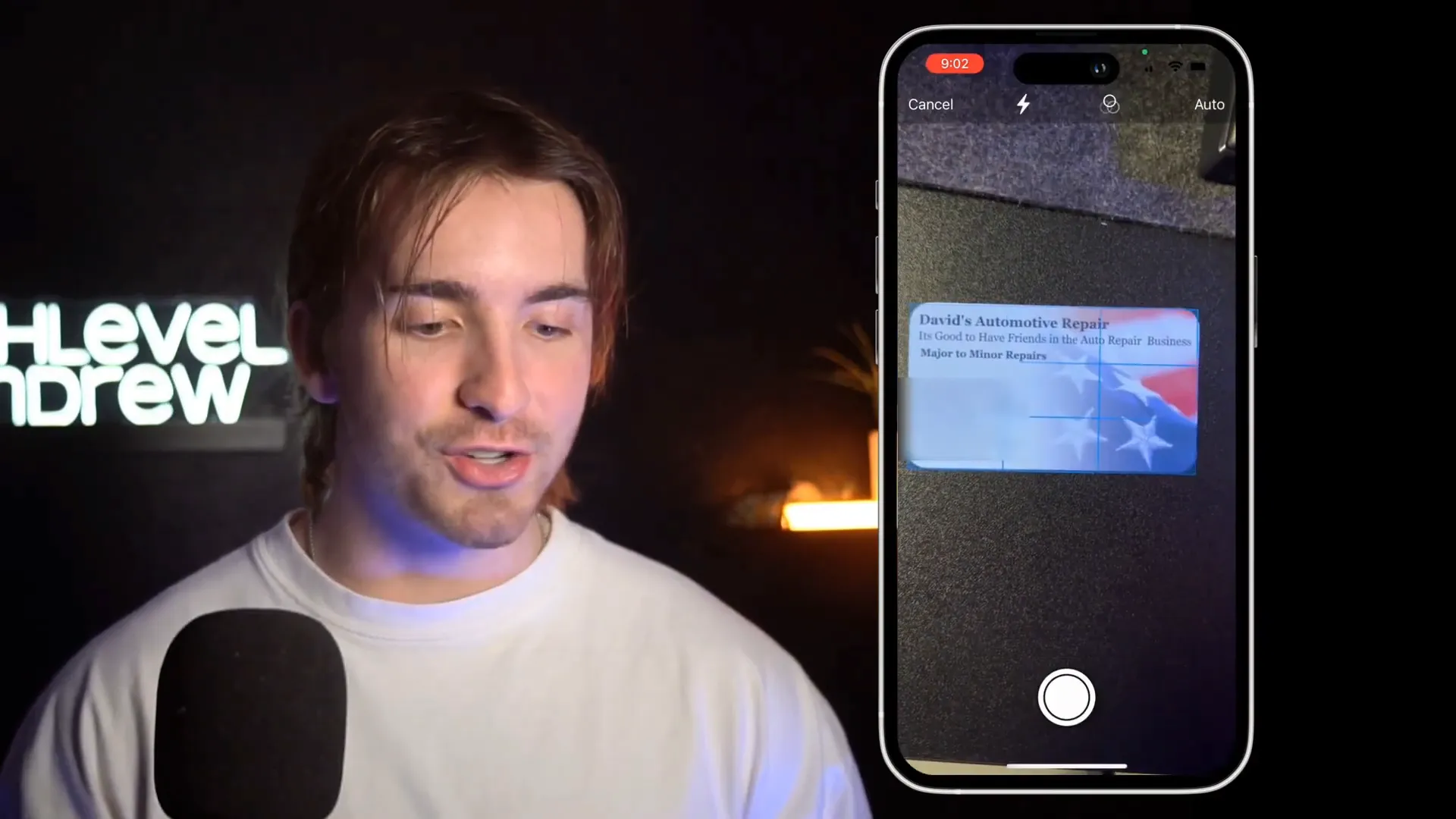
Accessing the Feature
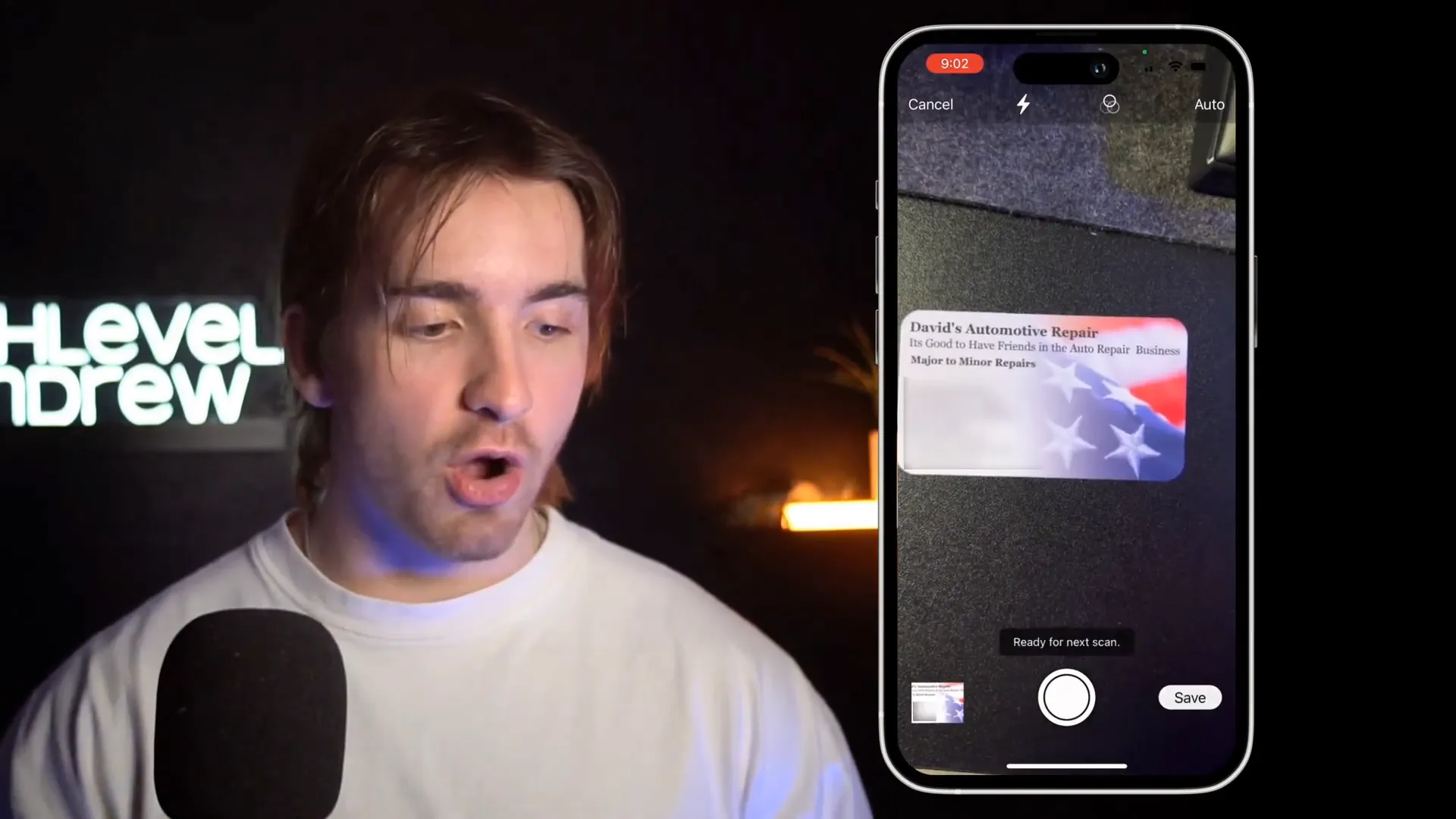
Scanning and Saving Information
Once the camera captures the information, you can click "Save." The app will display all details, including the first and last name, phone number, and email address. This information is then loaded directly into your CRM, streamlining your data entry process.
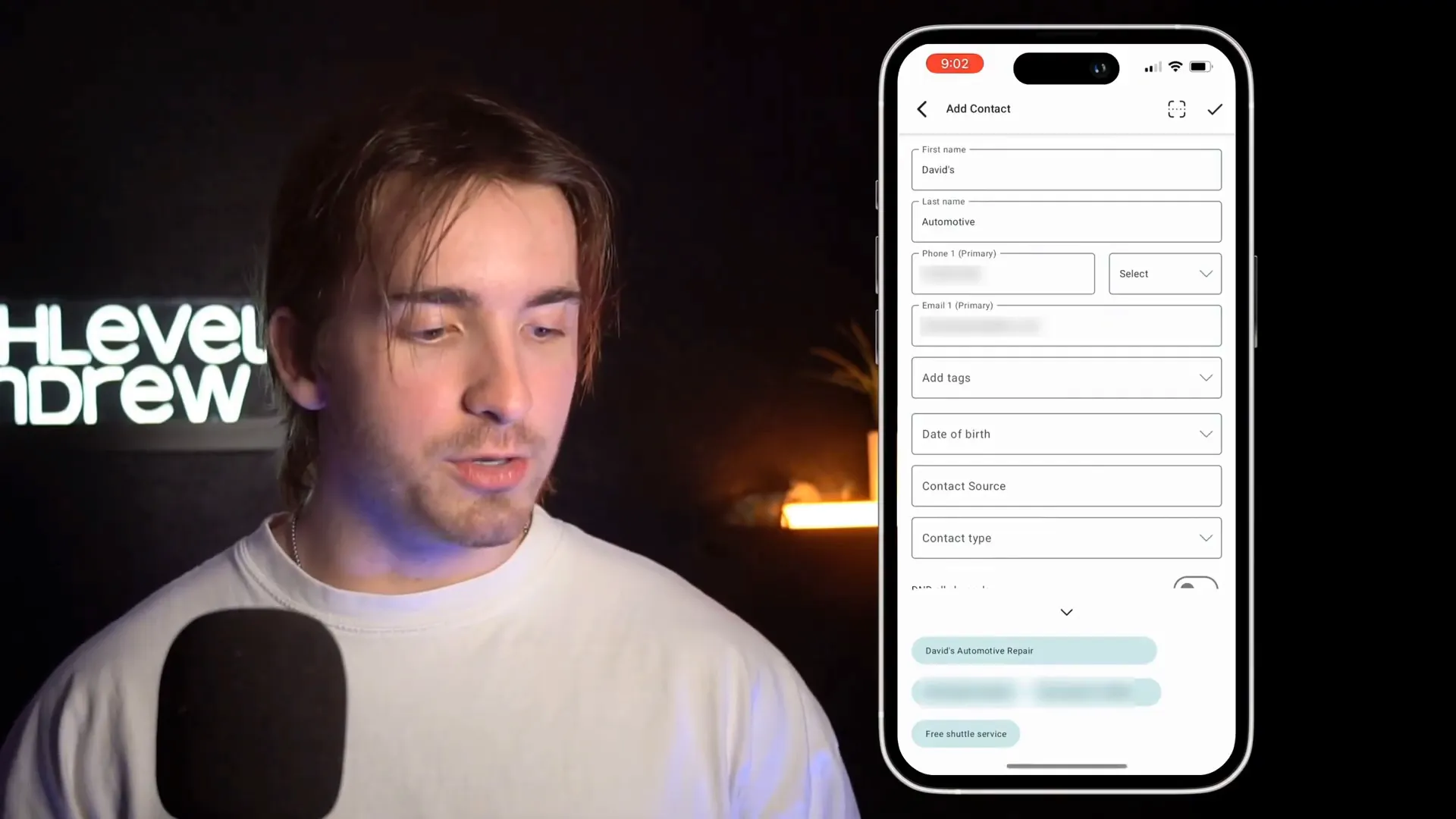
Checking Your Contacts
After saving the information, you can easily check the contact itself to ensure everything was loaded appropriately. This feature allows you to quickly verify that no details were missed or incorrectly scanned.

Alternative Access Method
If you prefer another route, you can also access the Business Card Scanner by clicking the lightning bolt icon located in the bottom right corner of your screen. From there, select "Scan Business Card" and follow the same scanning process.

The Benefits of Using the Business Card Scanner
This feature is particularly beneficial when attending networking events or in-person meetings with other business owners. Instead of fumbling with paper cards and later spending time entering data manually, you can capture the information on the spot.
I’ve personally found this tool invaluable in my networking efforts. It’s not only efficient but also ensures that you don’t lose valuable connections due to poor data entry practices.

Conclusion: Elevate Your Networking Game
The HighLevel Business Card Scanner is a game-changer for anyone looking to streamline their networking process. By automating the input of contact information into your CRM, you free up time to focus on building relationships rather than getting bogged down in data entry.
So, if you haven't already, give the HighLevel mobile app a try. I’m confident you’ll find it as useful as I have. Remember, efficient networking leads to greater opportunities!
Frequently Asked Questions
How accurate is the Business Card Scanner?
The scanner is designed to be highly accurate, but factors like lighting and card design can affect performance. Always double-check scanned information for errors before saving.
Can I edit the information after scanning?
Yes! After scanning, you can review and edit any details before saving them to your CRM.
Is the Business Card Scanner available on both iOS and Android?
Yes, the HighLevel app, including the Business Card Scanner, is available on both iOS and Android platforms.
What if my business card is in another language?
The scanner can handle multiple languages, but its effectiveness may vary based on the language and font used on the card.
For more tools and resources to enhance your business operations, check out our website at GFunnel. You’ll find a wealth of information and tools designed to help entrepreneurs like you thrive!