

Setting Up Calendar Payments in GoHighLevel (Lead Connector)
Step 1: Accessing Payment Integrations
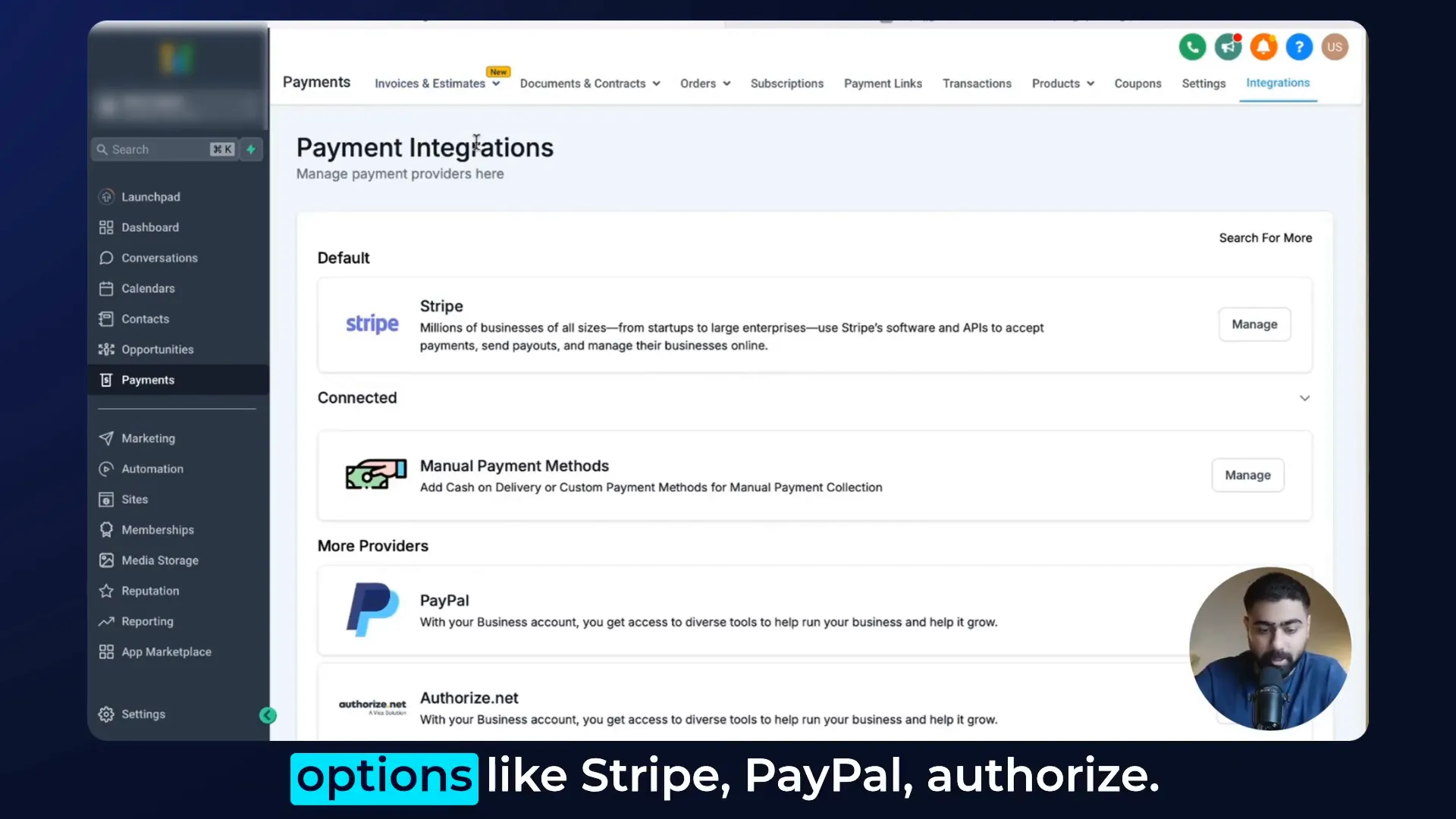
Step 2: Connecting Your Payment Provider
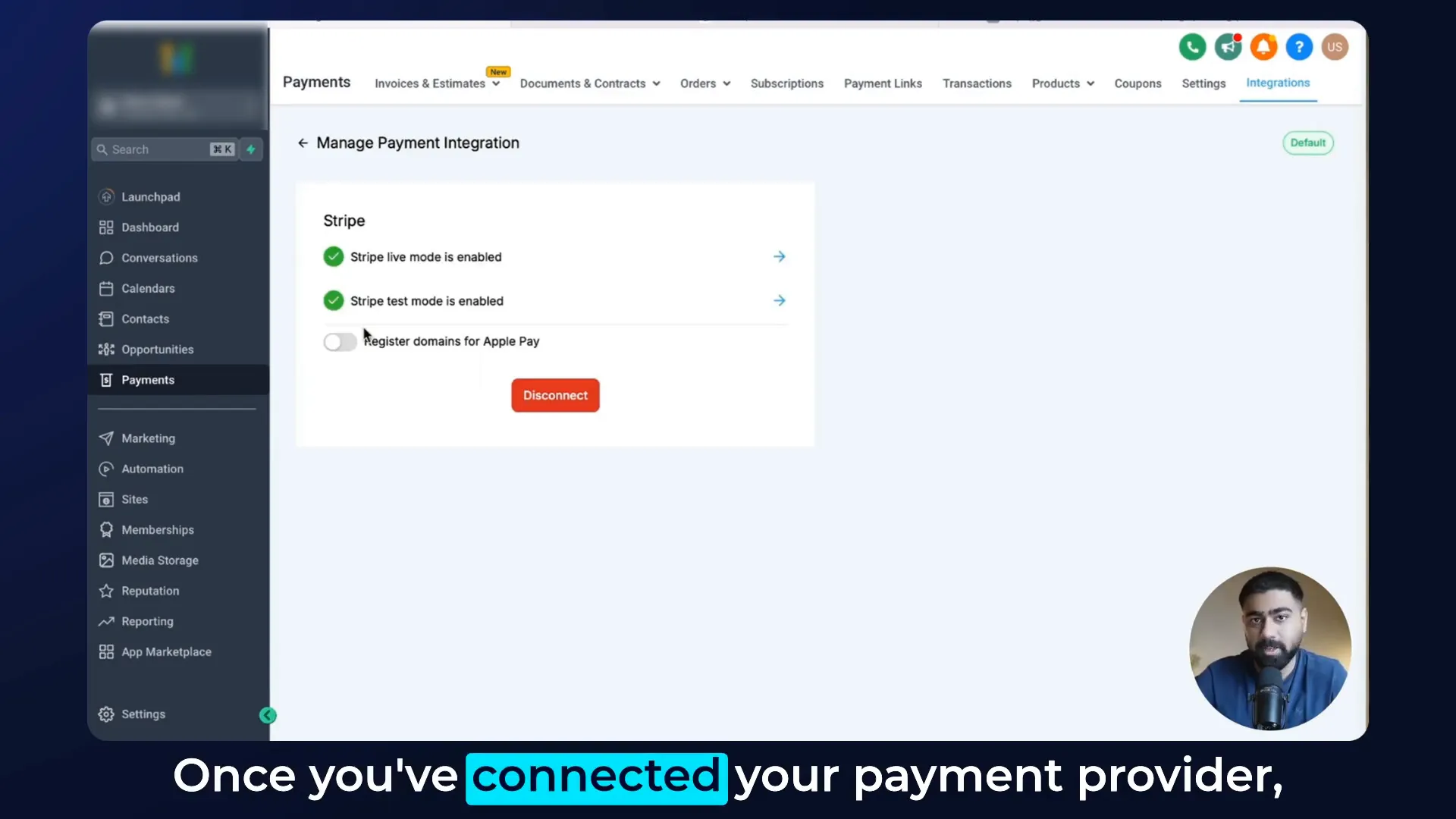
Step 3: Configuring Calendar Payments
Once your payment provider is connected, navigate to Calendars and click on Calendar Settings. Here, you’ll find all created calendars. If you want to create a new one, select the relevant type. For this example, I’ll use the Cairo calendar.
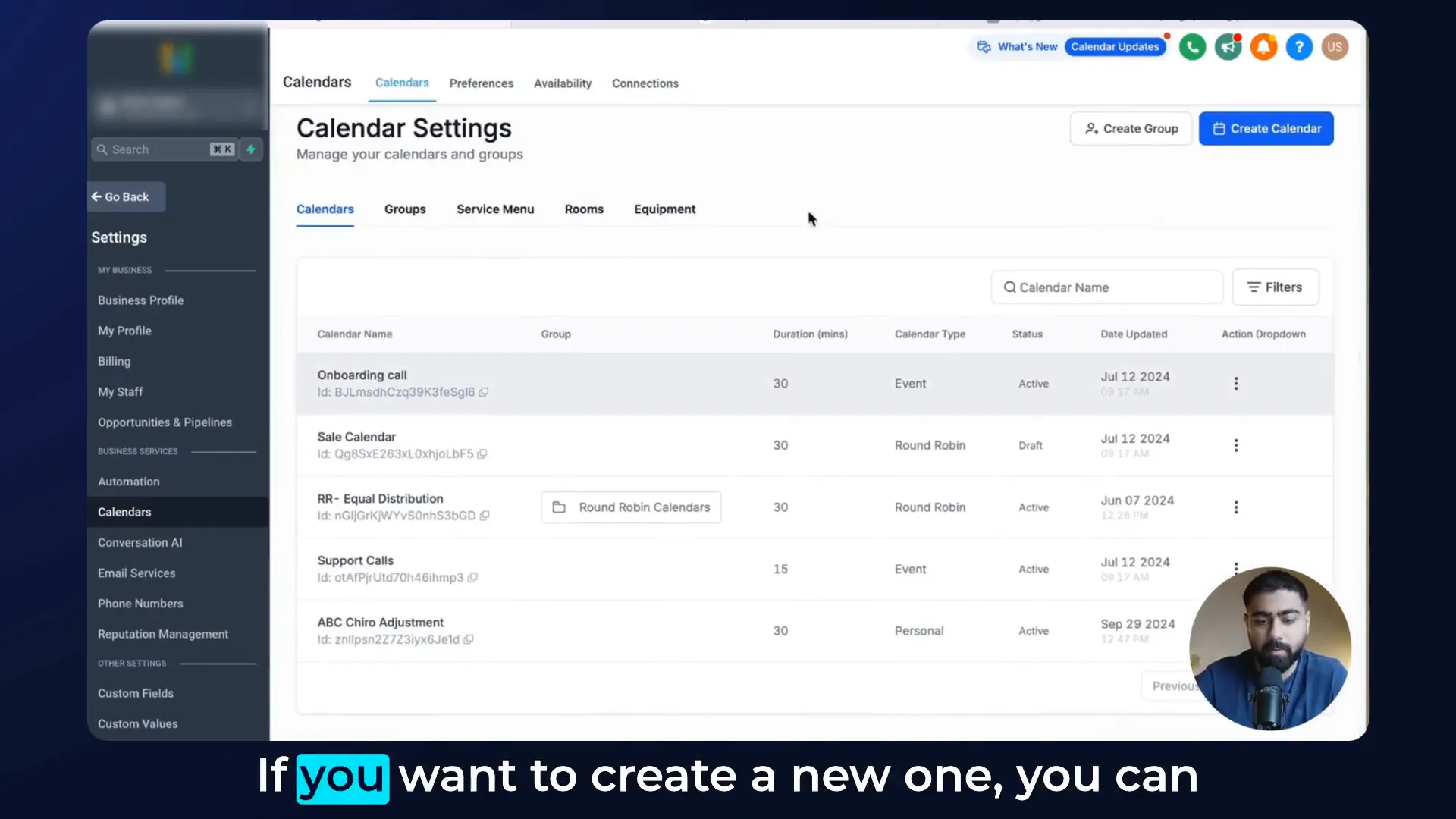
Editing Calendar Settings
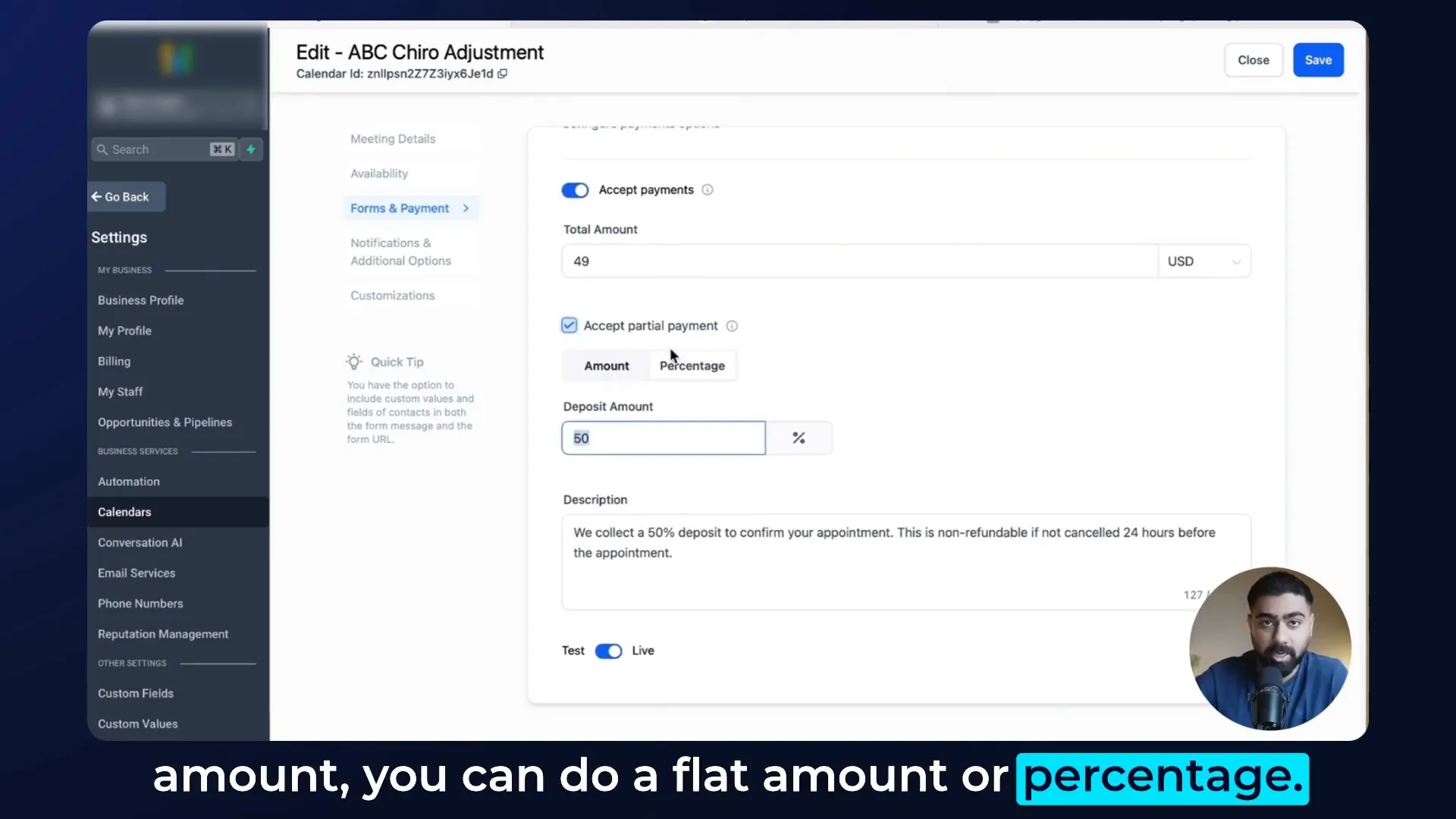
Click on the three dots next to your chosen calendar and select Edit. Go to Forms and Payment. Scroll down to the Accept Payments section. This toggle is usually off by default, so make sure to enable it.
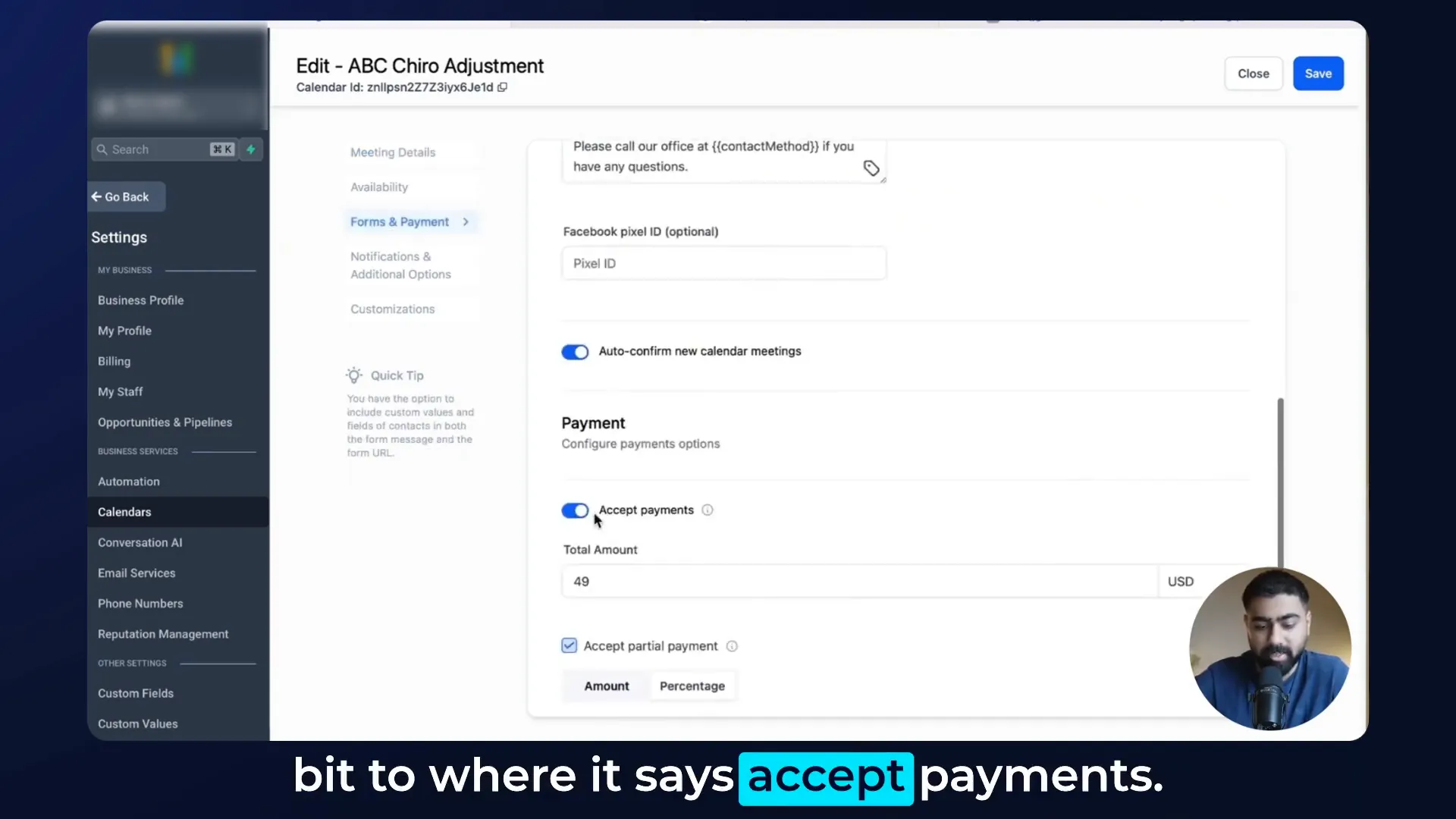
Setting Payment Amounts
Enter the total amount you’re charging for the appointment. You can also enable an option for partial payments. For example, if you want a deposit of 50%, keep the checkbox enabled. If you want to charge the full amount upfront, disable this option. Below, specify the deposit amount, either as a flat amount or percentage. Always include a description regarding the charge and cancellation policies for transparency.
Step 4: Testing Your Setup
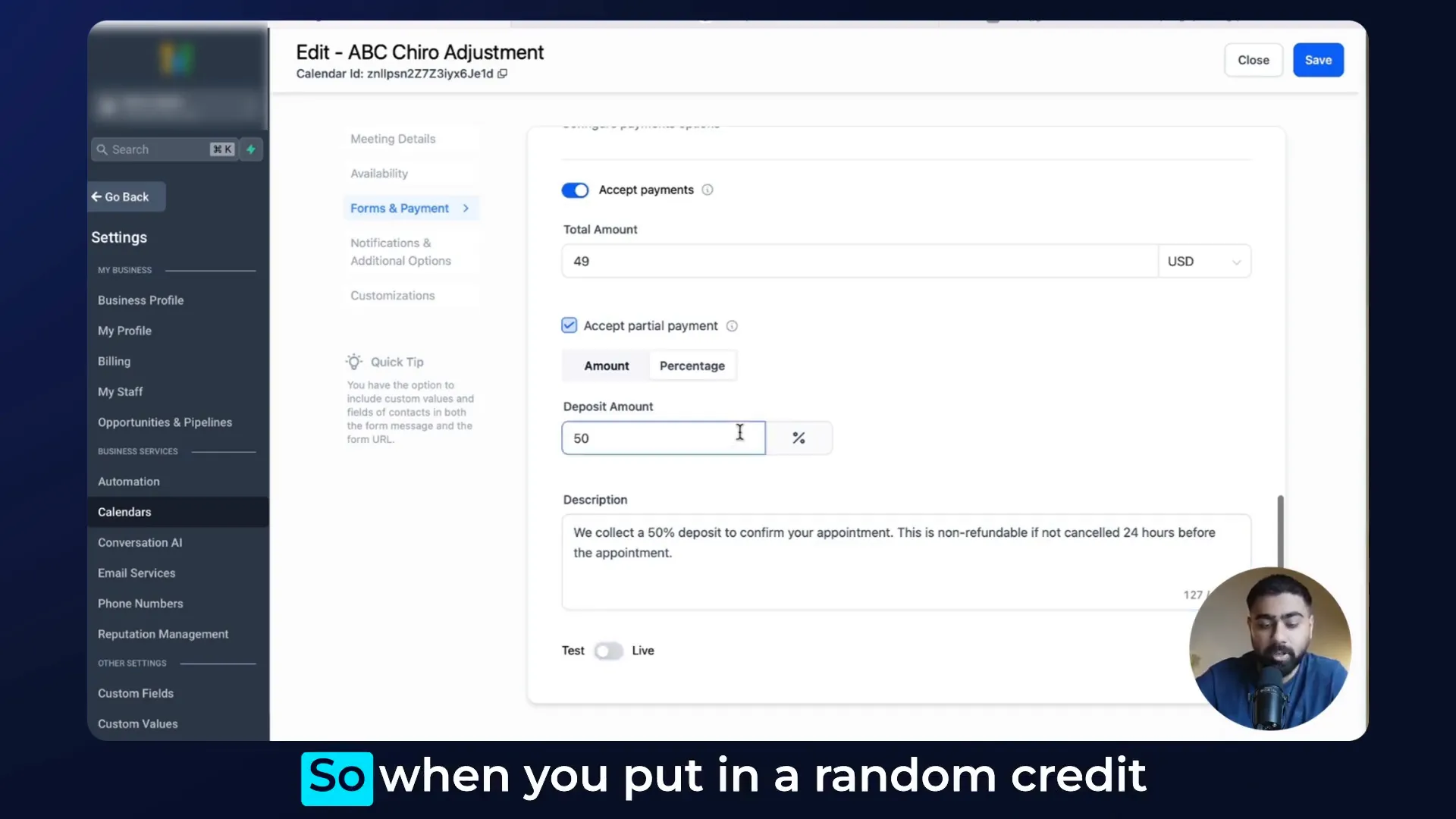
Finally, there's a toggle for Test or Live. If the calendar will be used on a website or funnel, ensure it's set to live. Otherwise, anyone can input random credit card details and bypass the payment process. If you want to test it, switch it to test mode, which won’t deduct any actual payments.
Step 5: Saving Your Settings
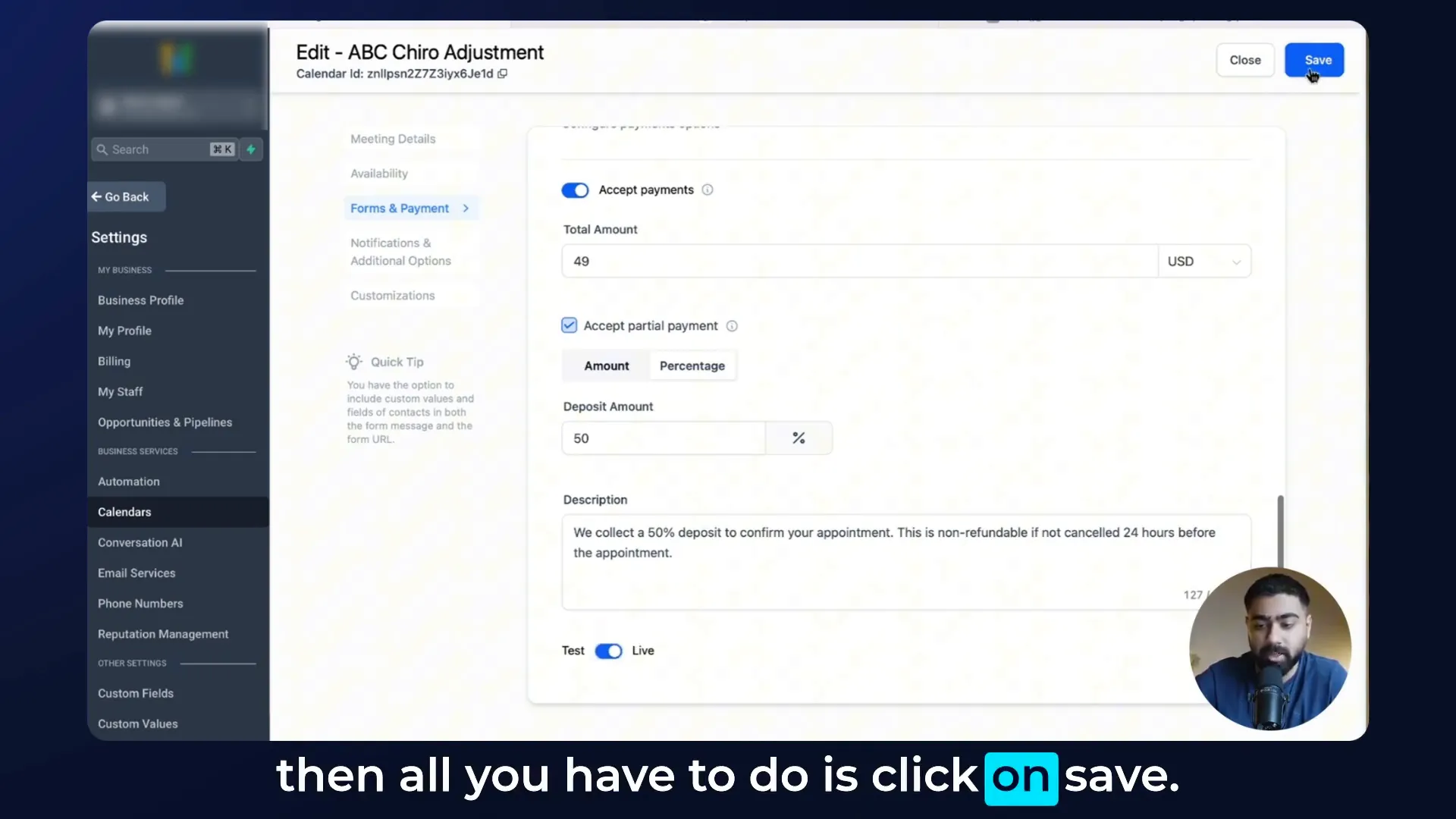
Once everything is configured, click Save. Now, calendar payments are enabled for your chiropractic calendar!
Step 6: Booking an Appointment
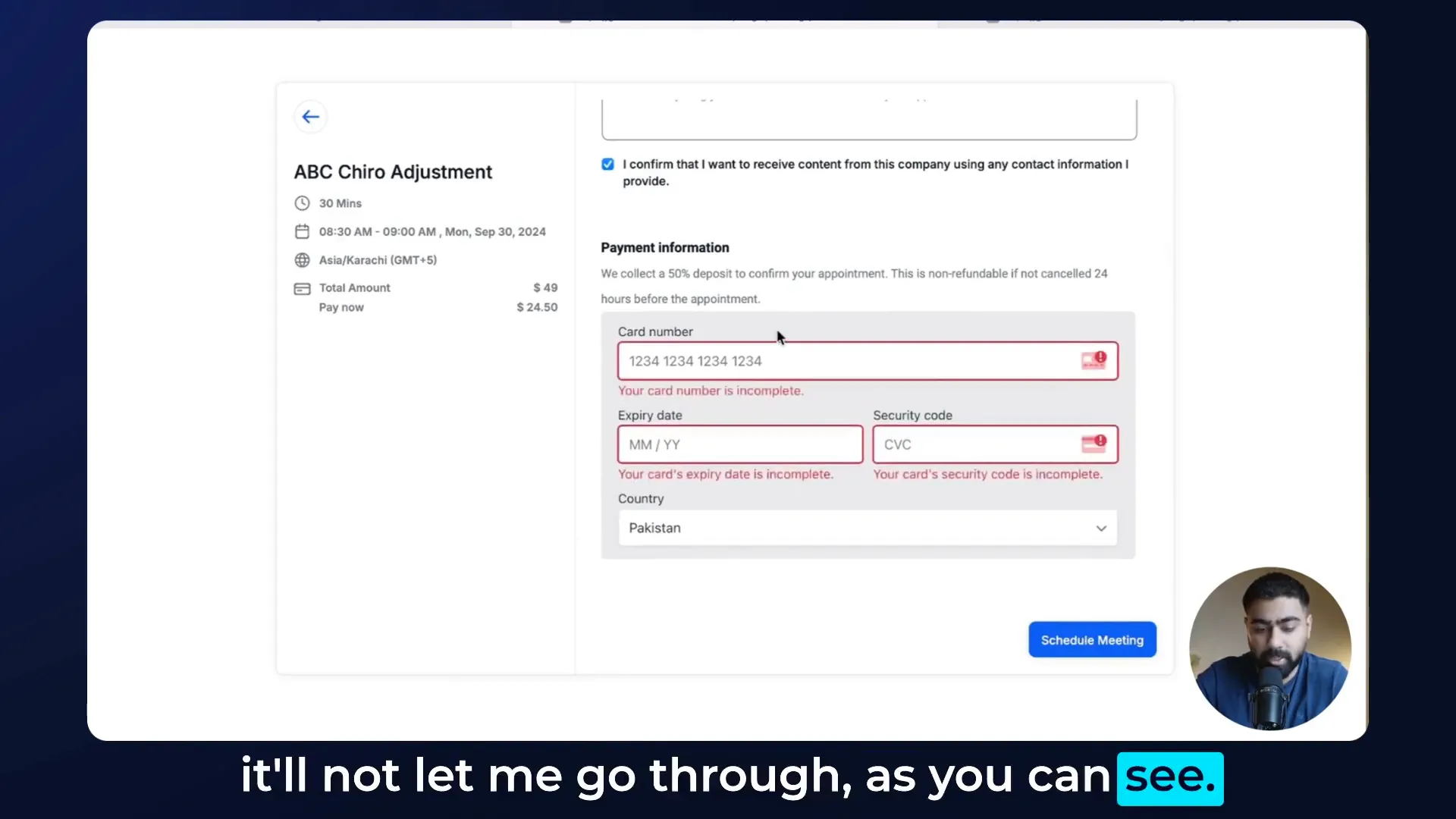
To see it in action, close the settings and click on Share to copy the link. When you open it, you’ll see the total amount and a Pay Now button. If you select a slot and don’t enter payment info, you won’t be able to proceed. This ensures that only those who pay the deposit can confirm their appointment.
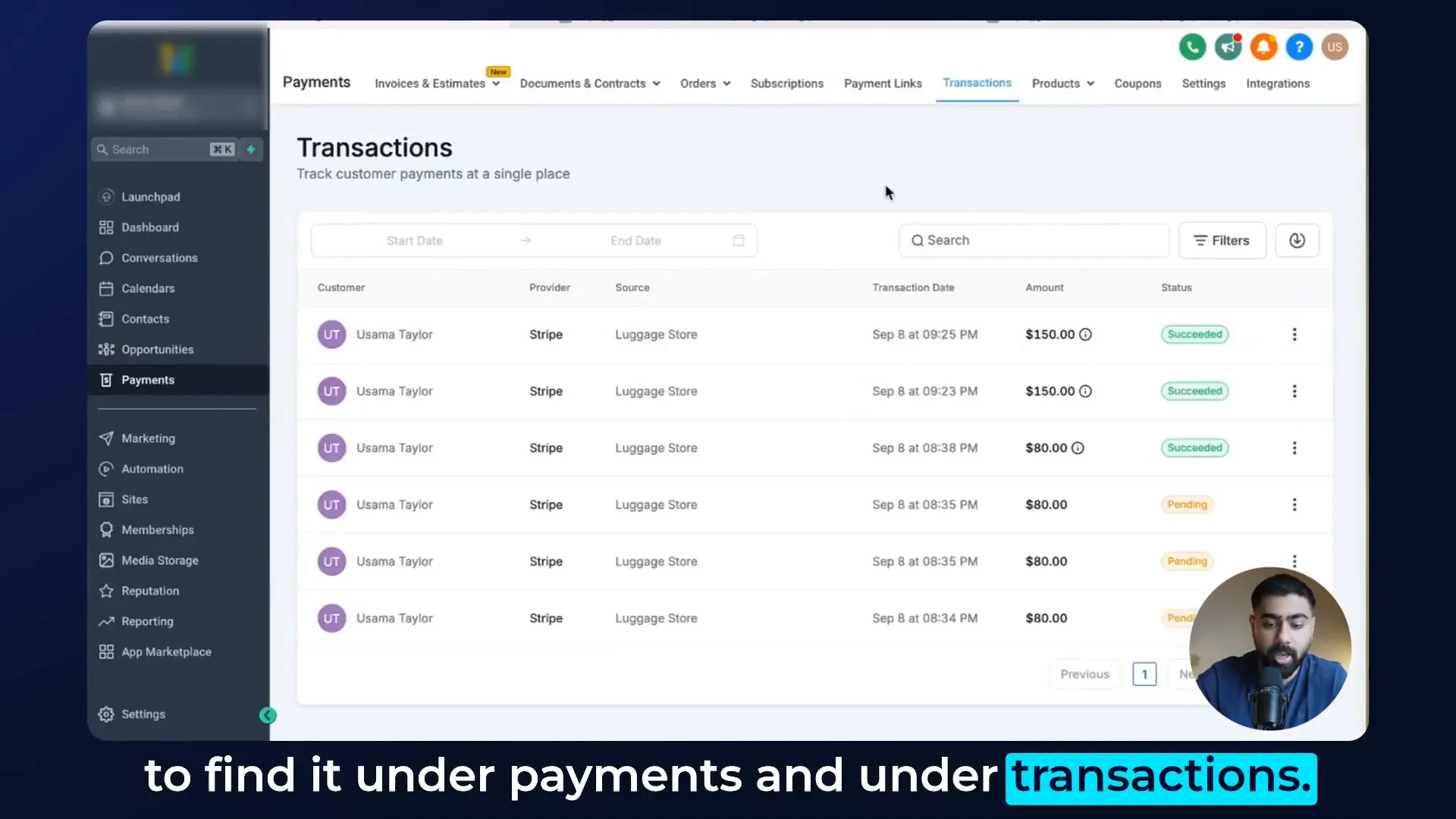
Step 7: Viewing Payment Transactions
Once someone pays, you’ll find the transaction history under Payments in the Transactions section. This log will show all payments made, keeping you organized and informed.
Conclusion
And that’s it! You’ve successfully set up calendar payments in GoHighLevel. This feature not only helps reduce no-shows but also filters out serious clients, improving the quality of your bookings. Thanks for watching, and happy scheduling!